
How to Auto-Generate YouTube Thumbnails with n8n (Step-by-Step)

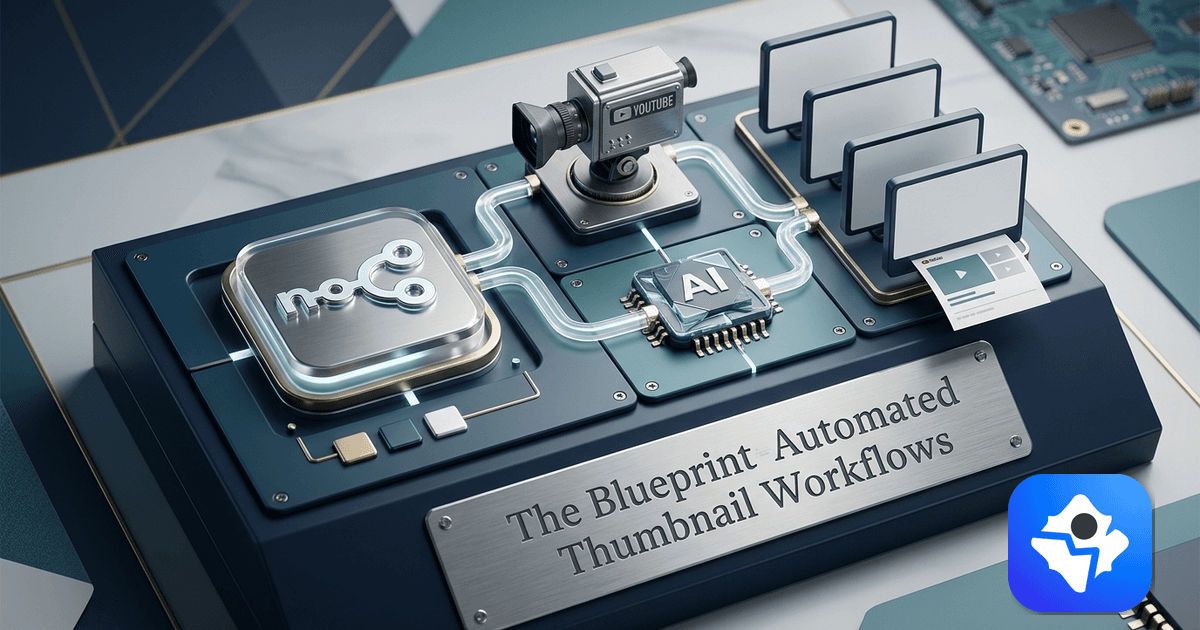
Thumbnail creation is the last manual step in most content pipelines. You write the video title, edit the footage, write the description — and then you open Canva or Photoshop and spend 20 minutes designing an image you could have generated in under 30 seconds.
This guide shows you how to close that gap entirely. By the end, you will have an n8n workflow that detects new YouTube uploads, sends the video title to ThumbAPI, and saves a production-ready thumbnail to Google Drive automatically. No design software, no manual steps.
The guide is written for developers and technically comfortable creators. If you want a higher-level overview of content automation, the developer's guide to automating content creation covers the broader picture. For the tool-agnostic version of this workflow — straight HTTP from Node.js, Python, or CI without n8n in front — see how to generate YouTube thumbnails automatically with an API. This post is the n8n-specific deep dive.
What You Are Building
The core workflow is:
- Detect a new YouTube video (via RSS or webhook)
- Extract the video title
- Call ThumbAPI with the title and target format
- Receive a base64-encoded WebP thumbnail
- Upload the thumbnail to Google Drive (or your CMS)
- Optionally notify your team via Slack
This workflow runs entirely inside n8n. You can self-host it on your own server or use n8n Cloud — the node configuration is identical either way.
Before the workflow: where the video itself comes from
This workflow starts from a video that's already rendered and uploaded — which assumes you solved the hard part already. If you're building a channel that has to publish on a schedule, that step can be automated too.
Generate a full YouTube video from one prompt with OpenVidi: you give it a topic in one sentence, and it researches it, writes the script, records the voiceover in one of 15 languages, generates around 95 scenes with Google's Gemini image models, animates them with Veo, and returns a finished 1080p MP4 — usually in under an hour, without you sitting there. Any scene you don't like regenerates on its own.
The cost model is worth knowing before you try it: OpenVidi runs on your own Google Cloud account, so you pay Google directly for compute at cost, with no markup on top. Google gives every new cloud account $300 in welcome credit, which covers roughly your first 5–8 full videos. Setup is a one-time ~5-minute Google Cloud connection with a filmed walkthrough, and the free trial is one full video with no card required.
Video generation runs in the OpenVidi web app (there's no n8n node for it today), so the hand-off point is the exported MP4 — from there the workflow below handles thumbnail, packaging and publishing as usual.
Prerequisites
Before starting, you need:
- An n8n instance (self-hosted or n8n Cloud)
- A ThumbAPI account with an API key — the free tier is enough to test
- A YouTube channel ID (find it in YouTube Studio under Settings → Channel → Advanced settings)
- A Google Drive account if you want to use the Drive destination in the examples
Step 1: Store Your ThumbAPI Key as a Credential
Never put API keys directly into HTTP Request nodes. n8n's credential manager encrypts them and keeps them out of your workflow JSON exports.
Go to Settings → Credentials → Add Credential and choose Header Auth:
Name:         ThumbAPI
Header Name:  x-api-key
Header Value: YOUR_THUMBAPI_KEY
Save the credential. You will select it in every HTTP Request node that talks to ThumbAPI.
Why
x-api-key? ThumbAPI authenticates via thex-api-keyheader, not a Bearer token. Make sure the header name matches exactly.
Step 2: Create the Workflow and Add a Trigger
Open n8n and click New Workflow. The trigger node determines what kicks off thumbnail generation. The two most useful options for YouTube content are:
Option A: RSS Feed Trigger (Recommended for YouTube)
YouTube publishes an RSS feed for every channel. The RSS Feed Read node polls it on a schedule and fires when a new video appears.
Node:          RSS Feed Read
Feed URL:      https://www.youtube.com/feeds/videos.xml?channel_id=YOUR_CHANNEL_ID
Poll Every:    15 minutes
Replace YOUR_CHANNEL_ID with your actual channel ID. n8n will pass the video title as $json.title to downstream nodes.
Option B: Webhook Trigger (For CMS or Custom Pipelines)
If you publish video metadata to a CMS before uploading to YouTube, use a Webhook trigger instead. Your CMS fires a POST request to the n8n webhook URL when content is ready.
Node:     Webhook
Method:   POST
Path:     /new-video
The webhook payload should include at minimum a title field. Everything else is optional.
Step 3: Add the ThumbAPI HTTP Request Node
Click + after your trigger and add an HTTP Request node. This is the node that calls ThumbAPI to generate the thumbnail.
Configure it as follows:
Method:              POST
URL:                 https://api.thumbapi.dev/v1/generate
Authentication:      Generic Credential Type → Header Auth
Credential:          ThumbAPI (the one you created in Step 1)
Send Body:           true
Body Content Type:   JSON
Set the JSON body:
{
  "title": "{{ $json.title }}",
  "format": "youtube",
  "imageStyle": "faceless",
  "outputFormat": "webp"
}
The {{ $json.title }} expression pulls the video title from the trigger output. If your trigger uses a different field name, adjust the expression accordingly.
Format and Style Options
| Parameter | Options |
|---|---|
format | youtube, instagram, x, blogpost, linkedin |
imageStyle | faceless, with-image, with-logo |
outputFormat | webp (default), png |
For YouTube, faceless generates text-and-graphic designs optimized for click-through. If you have uploaded a profile photo to the ThumbAPI dashboard, switch to with-image to include your face in every generated thumbnail.
Step 4: Test the HTTP Request Node
Before building out the rest of the workflow, test this node in isolation. Click Execute Node. If the request succeeds, you will see the response in n8n's output panel:
{
  "image": "data:image/webp;base64,UklGR...",
  "format": "youtube",
  "outputFormat": "webp",
  "generationId": "jrIgKpc5KaHkMKBiCPNl",
  "imageUrl": "https://cdn.thumbapi.dev/users/<uid>/generations/jrIgKpc5KaHkMKBiCPNl.webp"
}
The image field is the full base64-encoded WebP. A typical YouTube thumbnail is 50–150 KB encoded, which n8n handles without issues.
If the node fails, check:
- The credential header name is exactly
x-api-key(notAuthorization) - The API key is correct and active in your ThumbAPI dashboard
- The
titlefield in your request body is not empty
Step 5: Decode the Image and Upload to Google Drive
The base64 string needs to be converted into n8n binary data before you can upload it. Add a Code node between the HTTP Request node and your destination:
const base64String = $input.item.json.image;
const base64Data = base64String.includes(',')
  ? base64String.split(',')[1]
  : base64String;

const outputFormat = $input.item.json.outputFormat || 'webp';

return {
  json: {
    title: $input.item.json.title,
    format: $input.item.json.format,
    outputFormat,
  },
  binary: {
    data: {
      data: base64Data,
      fileName: `thumbnail-${Date.now()}.${outputFormat}`,
      mimeType: `image/${outputFormat}`,
    },
  },
};
After this node, add a Google Drive node:
Operation:        Upload File
File Name:        {{ $json.title }}.webp
Binary Property:  data
Parent Folder:    YouTube Thumbnails
The thumbnail is now in Google Drive with the video title as the filename.
Step 6: Add a Slack Notification (Optional)
If you work with a team, a Slack notification makes the workflow visible. Add a Slack node after the Drive upload:
Resource:   Message
Operation:  Send
Channel:    #thumbnails
Text:       Thumbnail generated for: {{ $json.title }}
            Drive: {{ $json.webViewLink }}
The workflow now fully handles detection, generation, upload, and notification without any manual intervention.
Complete Workflow JSON
Here is the complete workflow you can import directly into n8n. Replace YOUR_CHANNEL_ID and YOUR_GOOGLE_DRIVE_FOLDER_ID before importing, and attach your ThumbAPI Header Auth credential to the HTTP Request node after import.
Handling Multiple Platforms at Once
If you distribute the same content across YouTube, Instagram, and your blog, you can generate all three thumbnails in parallel from a single trigger. Add a Code node that fans out the request:
const title = $input.first().json.title;
const formats = ['youtube', 'instagram', 'blogpost'];

return formats.map((format) => ({
  json: { title, format },
}));
Connect this to a Loop Over Items node, then the HTTP Request node. Each iteration calls ThumbAPI with a different format, producing three platform-optimized thumbnails from one video title.
Platform dimensions ThumbAPI generates:
| Format | Dimensions |
|---|---|
youtube | 1280 × 720 |
instagram | 1080 × 1080 |
blogpost | 1200 × 630 |
x | 1200 × 675 |
linkedin | 1200 × 627 |
Cleaning Titles Before Generation
YouTube titles sometimes contain HTML entities, emoji, or other characters that render poorly on thumbnails. Add a Code node before the HTTP Request to sanitize the input:
const title = $input.first().json.title;
const clean = title
// Decode common HTML entities
.replace(/&/g, '&')
.replace(/</g, '<')
.replace(/>/g, '>')
.replace(/'/g, "'")
.replace(/"/g, '"')
// Strip emoji (optional — depends on your thumbnail style)
.replace(/[\u{1F600}-\u{1F64F}]/gu, '')
// Trim to 80 characters for clean thumbnail text
.trim()
.substring(0, 80);
return [{ json: { ...$input.first().json, title: clean } }];
Titles over 80 characters tend to overflow on the generated thumbnail. ThumbAPI handles truncation internally, but providing a clean title gives the layout engine more room to lay out the design well.
Error Handling for Production Workflows
Automated workflows break silently if you do not add error handling. These are the minimum safeguards for a production n8n thumbnail pipeline:
Enable "Continue On Fail" on the HTTP Request node. If ThumbAPI returns an error for one item in a batch, the workflow continues processing the rest rather than halting entirely.
Add retry logic. In the HTTP Request node settings, enable Retry On Fail with 2 retries and a 3-second interval. This handles transient network issues without any manual intervention.
Add a Wait node between batch items. If you are processing several videos at once, add a Wait node (1–2 seconds) between iterations to avoid hitting rate limits on the ThumbAPI side.
Route errors to a Slack notification. Connect the error output of the HTTP Request node to a Slack node that posts the failed item's title to a #thumbnail-errors channel. You want to know about failures before they affect your publishing schedule.
Why n8n Over Other Automation Tools
n8n's main advantages for thumbnail automation come down to control and cost:
Self-hosted option. Your API keys and content titles stay on your own infrastructure. For teams with data governance requirements, this matters.
No per-execution fees. Self-hosted n8n has no task-based pricing. The only cost is your ThumbAPI plan and whatever server hosts n8n.
Code nodes. The ability to run arbitrary JavaScript between nodes makes title cleaning, conditional logic, and data transformation straightforward — things that require workarounds in purely visual automation tools.
Full request visibility. You can inspect the exact request body sent to ThumbAPI and the exact response received. When something goes wrong, debugging takes minutes instead of hours.
If you prefer a no-code setup, the same thumbnail automation pattern works in Make.com and Zapier, with slightly less flexibility in the transformation steps.
Getting Started
The fastest path from zero to working thumbnail automation:
- Start free with ThumbAPI — 50 credits per month, no credit card
- Add your API key as a Header Auth credential in n8n
- Build the workflow from Step 2 in this guide (or import the JSON above)
- Run it against one video title and check the Drive output
- If the quality meets your bar, activate the workflow and let it run on every new upload
The entire setup takes under 30 minutes if you already have an n8n instance. The thumbnail generation itself runs in under 25 seconds per request. For most content operations, the time savings pay for the ThumbAPI plan within the first week.
For the canonical n8n setup — including a copy/paste test workflow that uses a public test key (no account required) — see the ThumbAPI + n8n integration guide.

Written by
Aldin KozicaFull-stack developer from Bosnia and Herzegovina. I built ThumbAPI because I kept watching content teams waste hours on thumbnail design when the patterns are predictable enough to automate. The API is the tool I wished existed when building content pipelines for my own projects.
Continue Reading
Build an n8n workflow that generates production-ready YouTube thumbnails automatically using ThumbAPI. Complete step-by-step guide with node configurations.
How to Automate YouTube Thumbnail Uploads — Full GuideA real walkthrough — Google Cloud OAuth2 setup, the credential wiring nobody documents, and a paste-ready workflow that pushes a ThumbAPI-generated image directly to YouTube.
How to Generate YouTube Thumbnails Automatically With an APIGenerate YouTube thumbnails automatically from a video title with a single API call. Code examples, batch patterns, and design tradeoffs for production pipelines.
Thumbnail A/B Testing — How to Use CTR Data to Pick Winning DesignsA developer-friendly playbook for A/B testing YouTube and blog thumbnails against real CTR data. Sample-size math, YouTube Studio's Test & Compare, blog cover experimentation, and how to loop the winner back into your generator.
Generate Thumbnails With an API
Try ThumbAPI free. 50 credits per month, no credit card required. One API call, production-ready output.