
How to Use a Thumbnail API With Node.js — Step-by-Step Guide

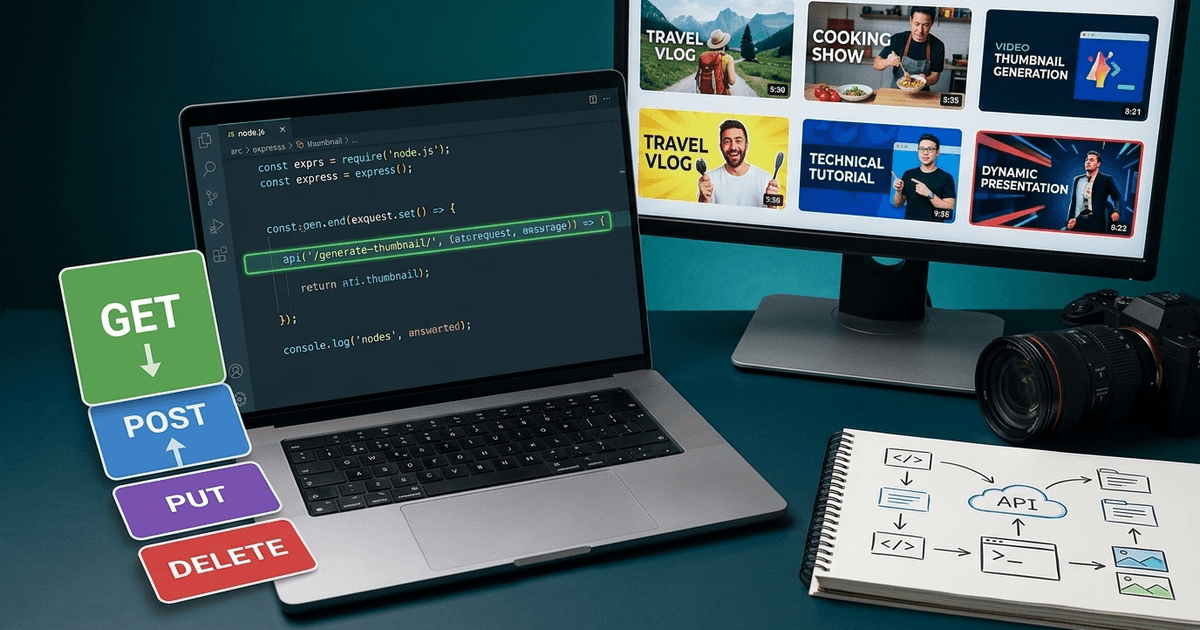
You have a Node script — a blog build hook, a cron worker, a Next.js route — and it needs a cover image at the end of the run. The design tool is not going to open itself, and hand-rolling a Canvas layout for every new title stops being funny after the second one.
This is the step-by-step version: from a fresh package.json to a working ThumbAPI call inside an Express handler, in the order you'd actually do it. No headless Chromium, no font vendoring, no template file to maintain.
Prerequisites
- Node.js 18 or newer (native
fetch— nonode-fetchinstall) - A code editor and terminal
- A ThumbAPI key — start free with 50 credits per month, no card
That's the entire dependency list. Everything below uses built-in modules (fs, path, fetch) so you can drop the snippet into any existing project without churning package.json.
Step 1 — Store the API Key Safely
Never paste the key directly into a .js file that ends up in git. The two-line version of "safely" for a Node project:
# .env
THUMBAPI_KEY=yt_xxxxxxxxxxxxxxxxxxxxxxxxxxxxxxxx
Then load it at process start. If you're on Node 20.6+ you can skip the dotenv package entirely and pass the env file as a flag:
node --env-file=.env generate.js
Older Node versions still need dotenv:
npm install dotenv
import "dotenv/config";
const API_KEY = process.env.THUMBAPI_KEY;
Add .env to .gitignore and move on. The authentication docs cover key scopes and rotation if you're deploying to a shared environment.
Step 2 — Make the First Request
The whole ThumbAPI surface is one POST. Send a title and a format, get back a JSON payload with a base64 data URL. The minimum viable version:
// generate.js
import "dotenv/config";

const API_KEY = process.env.THUMBAPI_KEY;
const API_URL = "https://api.thumbapi.dev/v1/generate";

const res = await fetch(API_URL, {
  method: "POST",
  headers: {
    "x-api-key": API_KEY,
    "Content-Type": "application/json",
  },
  body: JSON.stringify({
    title: "How the Roman Empire Actually Collapsed",
    format: "youtube",
  }),
});

if (!res.ok) {
  const body = await res.text();
  throw new Error("ThumbAPI " + res.status + ": " + body);
}

const data = await res.json();
console.log(data.dimensions, data.format);
Run it:
node --env-file=.env generate.js
# → { width: 1280, height: 720 } 'youtube'
data.image is a data:image/webp;base64,... string. data.imageUrl is the public Cloudflare R2 CDN link to the same file — use it when you want to skip base64 decoding and just hand the URL to another tool. The full response shape (including generationId and the echoed format / outputFormat) lives in the generate endpoint reference.
Step 3 — Pick the Right Format
format is the one field that decides both output size and layout family. The values you'll actually use:
"youtube"— 1280x720, YouTube thumbnail standard."blogpost"— 1200x630, OG image standard."linkedin"— 1200x627, LinkedIn feed shares."instagram"— square 1080x1080.
You do not compute dimensions on the client — pass the format and the API sizes the output. If you need copy-paste calls for each format, the code examples page has one snippet per format.
Step 4 — Decode and Save to Disk
The API returns a base64 data URL. Node speaks bytes, so strip the prefix, decode, and hand it to fs:
import fs from "node:fs/promises";

function decode(dataUrl) {
  const base64 = dataUrl.split(",", 2)[1];
  return Buffer.from(base64, "base64");
}

const buffer = decode(data.image);
await fs.writeFile("thumbnail.webp", buffer);
Two things worth locking in from day one:
- Save with the format extension the API returned. The default is WebP. If you asked for
outputFormat: "png", save.png. Wrong extensions confuse image CDNs and OG scrapers. - Slug the title before using it as a filename. A raw video title contains slashes, colons, and emoji — none of which survive on Windows filesystems. A tiny helper is enough:
const slugify = (s) => s.toLowerCase().replace(/[^a-z0-9]+/g, "-").slice(0, 60);
await fs.writeFile(slugify(title) + ".webp", buffer);
Step 5 — Handle the Errors You Will Actually See
The list of status codes that show up in a real Node integration:
- 200 — Decode
imageand use it. - 401 — Missing or wrong
x-api-key. Checkprocess.env. - 422 — Bad payload. Nine times out of ten it's a typo in
formatorimageStyle. - 429 — Rate-limited. Back off and retry.
- 5xx — Transient. Retry with backoff.
A minimal wrapper that handles the retriable cases without pulling in a library:
async function generate(body, attempt = 1) {
  const res = await fetch(API_URL, {
    method: "POST",
    headers: {
      "x-api-key": API_KEY,
      "Content-Type": "application/json",
    },
    body: JSON.stringify(body),
  });

  if (res.ok) return res.json();

  const retriable = res.status === 429 || res.status >= 500;
  if (retriable && attempt < 4) {
    const delay = 500 * 2 ** (attempt - 1);
    await new Promise((r) => setTimeout(r, delay));
    return generate(body, attempt + 1);
  }

  const body = await res.text();
  throw new Error("ThumbAPI " + res.status + ": " + body);
}
Do not retry a 401 or a 422 — the same call will fail again forever. Fail fast, surface the message, and fix the payload. The complete list with example bodies is in the errors reference, and the rate-limits page documents the exact per-plan ceilings.
Step 6 — Drop It Into an Express Route
Most Node projects don't want a file on disk — they want the image piped back to a caller, uploaded to S3, or stored on a CMS record. The function body is identical, only the wrapper changes:
import express from "express";
import "dotenv/config";

const app = express();
app.use(express.json());

app.post("/api/thumbnail", async (req, res) => {
  const { title, format = "youtube" } = req.body ?? {};
  if (!title) return res.status(400).json({ error: "title required" });

  const upstream = await fetch("https://api.thumbapi.dev/v1/generate", {
    method: "POST",
    headers: {
      "x-api-key": process.env.THUMBAPI_KEY,
      "Content-Type": "application/json",
    },
    body: JSON.stringify({ title, format }),
  });

  if (!upstream.ok) {
    return res.status(upstream.status).send(await upstream.text());
  }

  res.json(await upstream.json());
});

app.listen(3000);
For a Next.js App Router project, the same call goes inside a route.ts handler with NextResponse.json(...) — otherwise identical.
Step 7 — Lock the Visual Style Across Calls
If every thumbnail should look like it came from the same channel or brand, you have three knobs and no client-side compositing to do:
usePhoto: true— overlays the photo you saved in the dashboard. For face-camera channels.useLogo: true— drops your saved logo in the corner.customAssetsId— points at a custom reference set you uploaded once. Every call inherits the palette, typography, and aesthetic of that set.
await generate({
  title: "How the Roman Empire Actually Collapsed",
  format: "youtube",
  usePhoto: true,
  useLogo: true,
  customAssetsId: "m6XhjtZNdF0N2AFXUOiq",
});
The mental model for when to lean on the photo/logo flags versus a full custom reference set is in the custom asset datasets guide. Working in Python instead? The Python tutorial mirrors this post one function at a time.
Step 8 — Batch a List of Titles
Once the single call works, the natural next move is a folder of images from an array. Sequential with a small delay is enough for the free tier — no queue library, no worker pool:
import fs from "node:fs/promises";
import path from "node:path";

const OUT = "./thumbnails";
await fs.mkdir(OUT, { recursive: true });

const titles = [
  "How the Roman Empire Actually Collapsed",
  "Why the Stock Market Crashes Every Decade",
  "10 Ancient Civilizations Nobody Talks About",
];

for (const title of titles) {
  const data = await generate({ title, format: "youtube" });
  const buf = Buffer.from(data.image.split(",", 2)[1], "base64");
  const file = path.join(OUT, slugify(title) + ".webp");
  await fs.writeFile(file, buf);
  console.log("saved", file);
  await new Promise((r) => setTimeout(r, 1500));
}
If you want a battle-tested version with resumable runs, progress logging, and CSV input, the JavaScript and Node.js batch tutorial is the deeper cut on this pattern.
How ThumbAPI Fits a Node.js Stack
There is no SDK requirement, no local renderer, no font cache. From Node you get exactly what you saw above: one fetch, one JSON response, one Buffer.from. The API handles the layout selection, the reference retrieval, the photo/logo compositing, and returns the final image at the right dimensions for the format you asked for — so the only thing living in your codebase is the thin wrapper.
The free tier — 50 credits per month, one standard thumbnail is 10 credits — is enough to wire the integration end-to-end and confirm the output on real titles from your project before committing to a paid plan. The YouTube thumbnail API landing page lays out the broader surface (formats, pricing, custom assets) in one place, and the quickstart has the five-minute version of this guide.
Ship the Node Integration
The smallest version of this is twenty lines; the production version with retries, batching, and an Express handler is under a hundred. Either way, the design tool stops being a step in the pipeline.
Start free with 50 credits per month and paste Step 2 into your project — no credit card, no install beyond what you already have.

Written by
Aldin KozicaFull-stack developer from Bosnia and Herzegovina. I built ThumbAPI because I kept watching content teams waste hours on thumbnail design when the patterns are predictable enough to automate. The API is the tool I wished existed when building content pipelines for my own projects.
Continue Reading
Complete guide to integrating ThumbAPI into JavaScript and Node.js projects. Covers single requests, batch generation, TypeScript types, and integration patterns.
Thumbnail API Tutorial for Python Developers — Full Code ExamplesGenerate YouTube thumbnails, OG images, and blog covers from Python in one HTTP call. Sync requests, async httpx, retries, and a Flask/FastAPI route — all in plain Python.
How to Use Custom Asset Datasets for Brand-Consistent ThumbnailsUpload reference images once, then every thumbnail the API generates matches your channel's visual identity. Step-by-step guide with cURL, Python, and JavaScript examples.
Batch Thumbnail Generation for 100 Videos with PythonBuild a Python script that processes a CSV of video titles and generates production-ready thumbnails for all of them in a single run using ThumbAPI.
Generate Thumbnails With an API
Try ThumbAPI free. 50 credits per month, no credit card required. One API call, production-ready output.